ArrayLists are very cool! I don't know why I hadn't ran into them before... oh well time to change over some arrays to some arraylists.
http://abstractvb.com/code.asp?A=1030
Tuesday, May 16, 2006

Wednesday, May 10, 2006
Tuesday, May 09, 2006
Setting up auto enrollment for email certificates using active directory
We must issue a Key Recovery Agent certificate for this user. To do this:
Issue a new template named Key Recovery Agent
Request this certificate for the user who becomes the Key Recovery Agent
Manually Issue the Key Recovery Agent Certificate at the CA
Figure 1 shows the issued Key Recovery Agent Certificate for the user Administrator.
Figure 1: Issued Key Recovery Agent certificate
Important:
The Windows 2003 CA will not automatically issue this certificate to the user who requests the Key Recovery Agent certificate. The CA Administrator must manually Issue the certificate in the Microsoft CA
Now it is time to enable the CA for Key Archiving. Start the Microsoft CA
Now you have to configure the following settings for this template: (I also checked do not automatically reenroll if a duplicate certificate exists, this will keep someone from logging on a different computer and receiving a new cert and getting their mail all messed up because they would have incompatible keys and their email would get encrypted with the wrong ones possibly.
Publishing all certificates in Active Directory is required, because the “Global Address List” of Exchange Server 2003 is based on AD. If you have configured this feature, all certificates are available in Active Directory.
In “Request Handling Properties” you have to choose signature and encryption and you should configure key archiving to provide key recovery. In addition to this, enrolling the certificate without requiring user input is the proposed solution.
To make sure that the old Exchange User template would never be used again you should configure it so that this new template supersedes the old one.
I created a group called email encryption that I then added members to provide them with certs.
Next you want to set up group policy to allow auto-enrollment
Configuring Certificate Services for Autoenrollment
Autoenrollment is a useful feature of certification services in Windows XP and Windows Server 2003, Standard Edition. Autoenrollment allows the administrator to configure subjects to automatically enroll for certificates, retrieve issued certificates, and renew expiring certificates without requiring subject interaction. The subject does not need to be aware of any certificate operations, unless you configure the certificate template to interact with the subject.
Wednesday, May 03, 2006
Needed to sort an array of objects. The code from here was very useful http://www.vbcity.com/forums/topic.asp?tid=36084 basically had to implement Icomparable inside the object you wanted to sort.
We will set this class to sort by the FullName property in ascending order.
Code:
Public Function CompareTo(ByVal obj As Object) As Integer Implements System.IComparable.CompareTo
Dim p As Person
' Any non-Nothing object is greater than nothing.
If obj Is Nothing Then
Return 1
End If
' Avoid late-binding and cast to a specific Person Object.
p = CType(obj, Person)
' Use the String's CompareTo Method to perform the check.
Return Me.FullName.CompareTo(p.FullName)
End Function
We will set this class to sort by the FullName property in ascending order.
Code:
Public Function CompareTo(ByVal obj As Object) As Integer Implements System.IComparable.CompareTo
Dim p As Person
' Any non-Nothing object is greater than nothing.
If obj Is Nothing Then
Return 1
End If
' Avoid late-binding and cast to a specific Person Object.
p = CType(obj, Person)
' Use the String's CompareTo Method to perform the check.
Return Me.FullName.CompareTo(p.FullName)
End Function
Tuesday, May 02, 2006
Monday, May 01, 2006
Friday, April 28, 2006
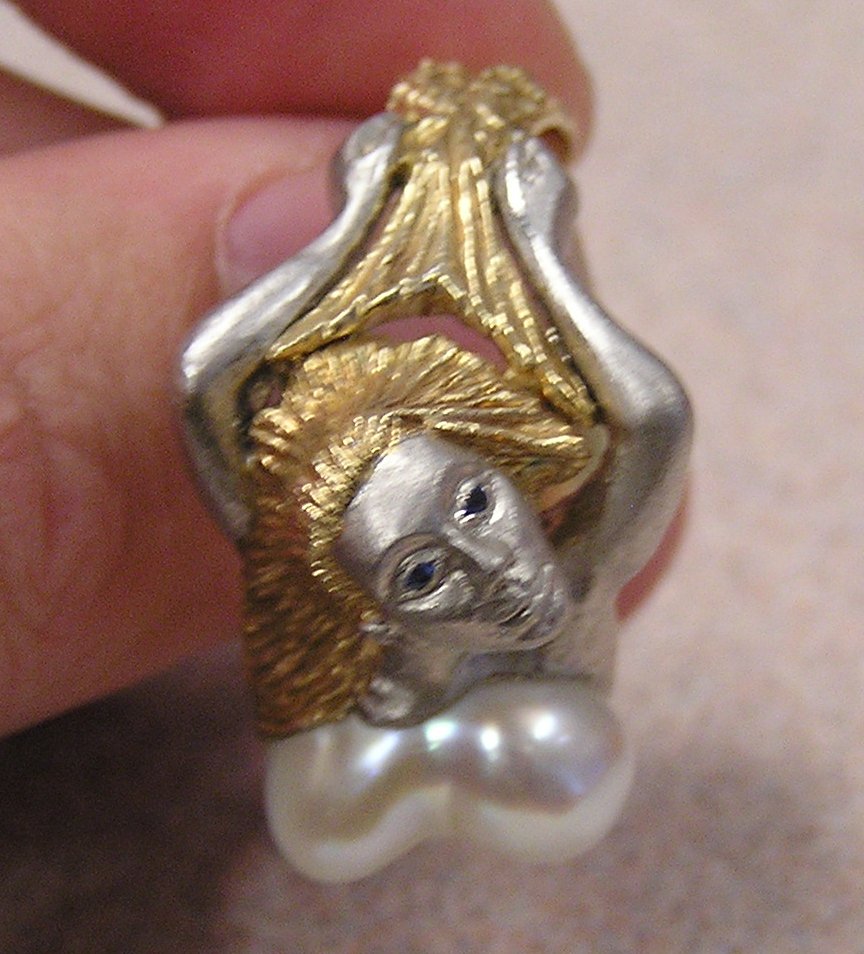
So I'm engaged, did you know that? Probably you do since nobody else besides family reads this blog :-) anyways so spent last night looking at rings (and other jewelry) that Grandpa Nissan created. It is truly amazing work. So today I followed a reference of his to downtown Seattle to look for some diamonds to put in the ring that Heidi picked out. They remembered him there and also returned some jewelry of his, which is why I have a rather busty looking mermaid ring in my pocket right now... it looks like this
Thursday, April 27, 2006
Setting up encrypted and signed email for outlook... on the cheap(free).
First get yourself an account at https://www.cacert.org this place is awesome since I detest paying for anything... especially a cert.
I use this same account for multiple people in the office. Let's say I'm settting up joe@joe.com I first click add under email accounts and then type in joe@joe.com. This then sends Joe an email with the subject [Cacert.org] Mail Probe and a link that he must click in order to verify his address.
After he has clicked on the link I log back into cacert.org and then click Client Certificates/New. I then create a new certificate using joe@joe.com. I use the default of (Microsofot Enhanced Cryptographic Provider v1.0) and Install the Certificate.
Once the cert is installed I export it with the private key so I can send it to joe, and I export the public key so I can publish to GAL using active directory.
This is accomplished by opening IE, going to tools, Internet options, content tab, Certificates button, under personal tab I click on the cert I want to export and then click export. I choose to export the private key and I export Joe.pfx
I repeat this process but this time I only export the public key saving it as Joe.cer
***This part is sneaky vodoo***! (Hard to find instructions for this on the net)
Next I go to the email server and publish the Joe.cer (public cert).
First copy Joe.cer over to the email server. Then open the exhange system manager on the email server. Then, recipients, All global Address Lists, R-click on Default Global Address List, Properties, And then (drum roll please) hit the preview button, then find and double click the person you want to add a cert to, then go to published certificates tab, then click add from file. This will publish their cert to the GAL (global address list)
Next I like to send them a test encrypted message. Outlook is funny you have to hit the options button (this is also under view, options) and then enable sign and encrypt.
Next we need to enable joe to be able to actually read his encrypted email. To do this send joe his joe.pfx and have him import it. That should do it.
First get yourself an account at https://www.cacert.org this place is awesome since I detest paying for anything... especially a cert.
I use this same account for multiple people in the office. Let's say I'm settting up joe@joe.com I first click add under email accounts and then type in joe@joe.com. This then sends Joe an email with the subject [Cacert.org] Mail Probe and a link that he must click in order to verify his address.
After he has clicked on the link I log back into cacert.org and then click Client Certificates/New. I then create a new certificate using joe@joe.com. I use the default of (Microsofot Enhanced Cryptographic Provider v1.0) and Install the Certificate.
Once the cert is installed I export it with the private key so I can send it to joe, and I export the public key so I can publish to GAL using active directory.
This is accomplished by opening IE, going to tools, Internet options, content tab, Certificates button, under personal tab I click on the cert I want to export and then click export. I choose to export the private key and I export Joe.pfx
I repeat this process but this time I only export the public key saving it as Joe.cer
***This part is sneaky vodoo***! (Hard to find instructions for this on the net)
Next I go to the email server and publish the Joe.cer (public cert).
First copy Joe.cer over to the email server. Then open the exhange system manager on the email server. Then, recipients, All global Address Lists, R-click on Default Global Address List, Properties, And then (drum roll please) hit the preview button, then find and double click the person you want to add a cert to, then go to published certificates tab, then click add from file. This will publish their cert to the GAL (global address list)
Next I like to send them a test encrypted message. Outlook is funny you have to hit the options button (this is also under view, options) and then enable sign and encrypt.
Next we need to enable joe to be able to actually read his encrypted email. To do this send joe his joe.pfx and have him import it. That should do it.
Wednesday, April 26, 2006
Not tech related, but, man I got my mouth stuck open again yesterday night. Normally it only sticks for a couple of minutes but yesterday it was open for a full half hour.... this sucked unbelievably. Not being able to close your mouth quickly becomes very frustrating and somewhat painful. So the lesson of the day is don't open your mouth overly wide... it might just stick that way.
Tuesday, April 25, 2006
Monday, April 24, 2006
My latest great discovery. The discovery is this, naming your computer - is a bad idea. Ok so that was a little unclear... naming your computer the character "-" is a bad idea. I usually like to name computers with very short names, right now the old one is named x. So I thought naming the new one - would be fun. But it completly makes ping, and DNS and all sorts of other things not work right so... I need a new name for my new computer.
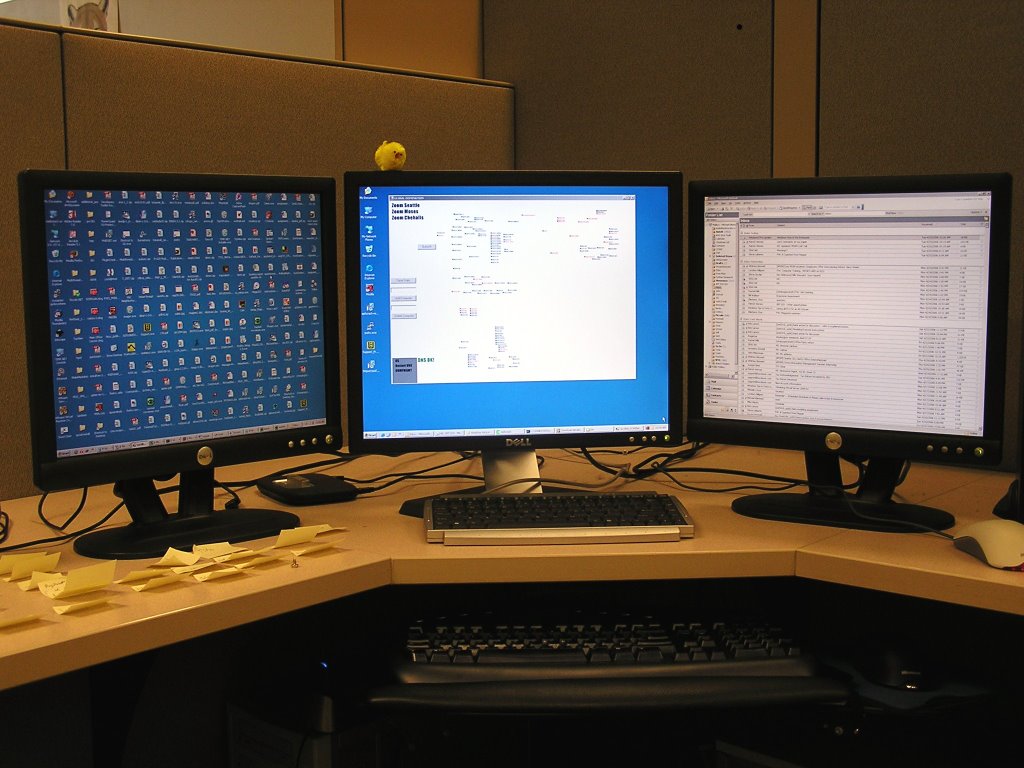
Ok, so Friday I finally got my triple monitor setup back up and running, very sweet. I'll have to post a picture. It was rather annoying since I kept trying different cards, and they kept on crashing XP, but finally two nVidia cards with updated drivers and the onboard video decided to play nice together.
Subscribe to:
Posts (Atom)